Getting Started
Installing LagInspector and running your first diagnostic, start to finish — including the best workflow if you're on a single monitor.
Claim your beta code
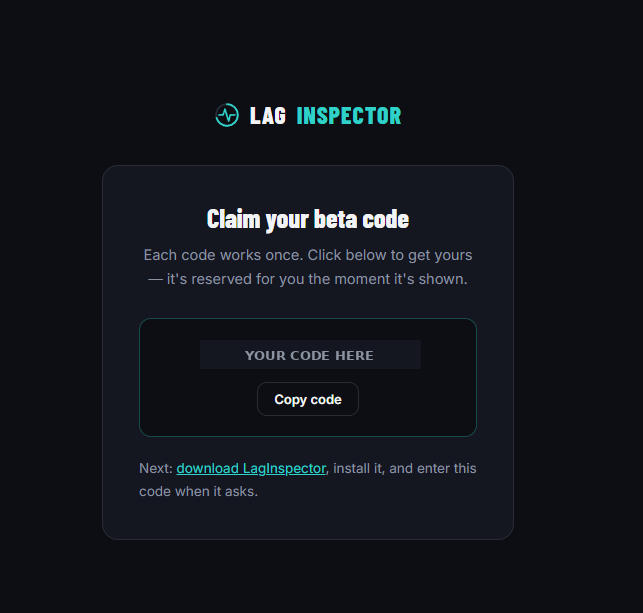
Go to the claim page and click "Get my beta code." You'll be given a one-time code — copy it, you'll need it in step 3.
Download and install
- Download the installer from the link on the claim or redeem page.
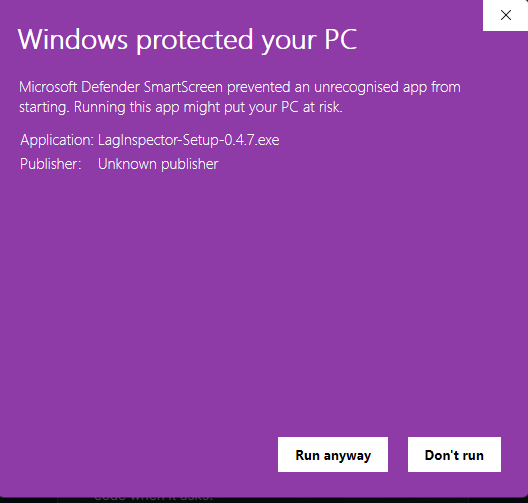
- Run it. Windows may show a "Windows protected your PC" SmartScreen warning, since this is a new app — click More info, then Run anyway.
- Follow the installer through to completion.
First launch
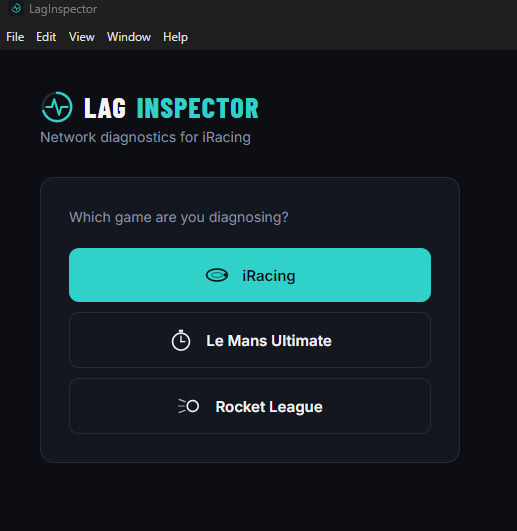
Enter your beta code when prompted, then select which game you're testing. If you're using iRacing, you'll be asked to confirm your app.ini location — this is normally found automatically.
Running your first diagnostic
You need to be in a genuine online session with the game actively running — offline practice or solo modes won't produce any real traffic to capture.
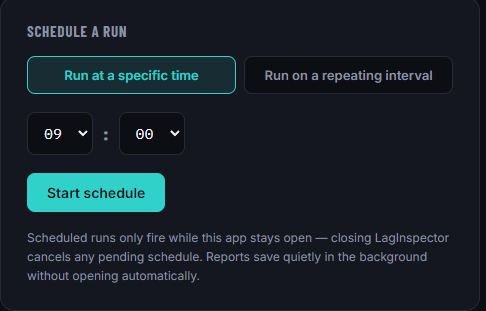
Use a Scheduled Run. This is especially useful for games like Rocket League, where switching back to your desktop mid-match to start a manual test is awkward. Instead: set a scheduled run for a few minutes ahead before you queue into a match, then just play normally. LagInspector captures automatically in the background — no alt-tabbing required. Your report saves quietly; find it afterward in Report History.
Manual run (if you're on a second monitor, or don't mind briefly switching away):
- Get into your online match first.
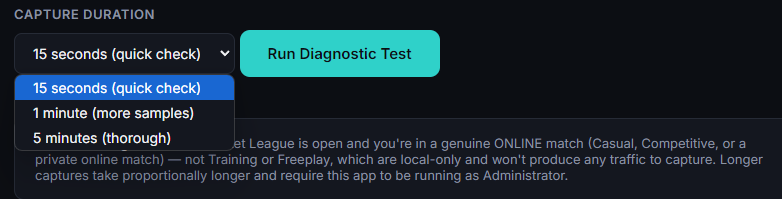
- Alt-tab to LagInspector and click Run Diagnostic.
- Switch straight back to the game and keep playing normally for the capture duration.
Reading your report
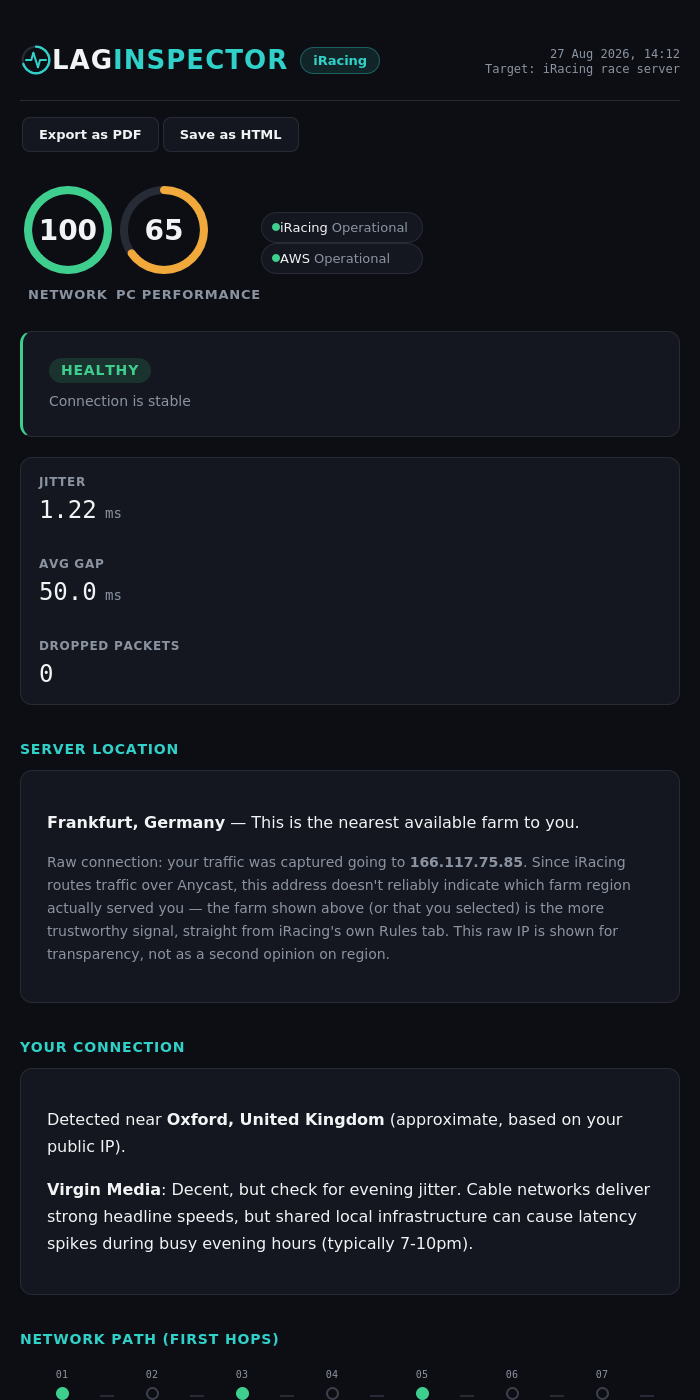
Your report opens automatically once the capture finishes (or find it any time in Report History). You'll see two scores — Network and PC Performance — followed by a plain-English explanation of what's actually causing any issues, and specific fixes if something's found.
Tip: playing in exclusive fullscreen
If you'd rather not use scheduled runs, switching your game's display mode from Fullscreen to Borderless Windowed makes Alt-Tab instant, with no mode-switch delay or flicker. Most games have this under Display or Graphics settings, with no meaningful performance cost on modern systems.